FluxGym is a powerful tool for training FLUX LoRA models, but beginners may sometimes face issues during installation, setup, or the training process. Errors such as application crashes, GPU detection problems, CUDA failures, missing files, or slow performance can interrupt your workflow and make it difficult to complete your AI training projects. The good news is that most FluxGym problems are caused by simple configuration mistakes, outdated drivers, or system compatibility issues. In this guide, we will explore the most common FluxGym errors and provide practical solutions to help you fix problems quickly and get back to creating high-quality FLUX LoRA models.
Read More: FluxGym vs ComfyUI: Which AI Image Training Tool Should You Choose?
Why Is FluxGym Not Working?
FluxGym depends on several components working correctly, including your operating system, Python environment, GPU drivers, required libraries, and FLUX model files. If any of these components are outdated or incorrectly configured, FluxGym may fail to start or produce errors during training.Most problems are not caused by FluxGym itself but by system compatibility issues. For example, an outdated NVIDIA driver, insufficient VRAM, missing dependencies, or an incorrect model path can prevent the application from functioning correctly.
Before trying advanced fixes, always check that your FluxGym installation is complete and that your system meets the recommended requirements.
FluxGym Installation Problems and Solutions
One of the most common issues beginners face is that FluxGym does not open after installation. This usually happens because some required files or dependencies were not installed correctly.Make sure you have followed the official installation process carefully and that all required components are available on your computer. A failed installation can also happen when antivirus software blocks certain files or when the installation folder does not have proper permissions.
Try reinstalling FluxGym in a clean folder and avoid moving files manually after installation. A fresh installation often fixes missing file errors and corrupted configurations.
FluxGym Does Not Start or Crashes on Launch
If FluxGym opens and immediately closes, the problem is usually related to dependencies, Python environments, or hardware compatibility.First, restart your computer and try launching FluxGym again. Temporary system conflicts can sometimes prevent AI applications from starting correctly.
If the problem continues, check whether your GPU drivers are updated. FLUX-based applications rely heavily on GPU acceleration, and outdated drivers can cause startup crashes or compatibility problems.
Fix FluxGym CUDA and GPU Errors
GPU-related errors are among the most common problems when training FLUX LoRA models. Messages related to CUDA, GPU memory, or acceleration usually indicate that FluxGym cannot properly access your graphics card.Make sure you have the latest NVIDIA drivers installed if you are using an NVIDIA GPU. CUDA compatibility depends on both your driver version and the libraries used by FluxGym.
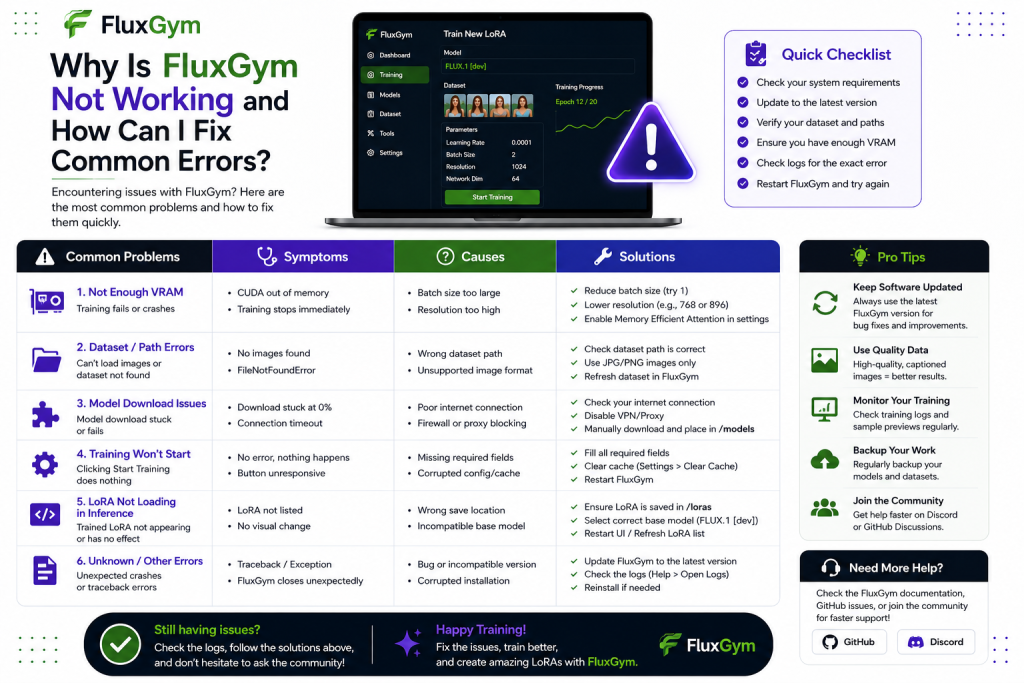
If FluxGym reports a CUDA memory error, your GPU may not have enough VRAM for your selected training settings. Reducing the batch size, lowering image resolution, or using optimized settings can help reduce memory usage.
Some common GPU problems include:
- CUDA out of memory errors
- GPU not detected
- Slow training speed
- Unexpected training interruptions
FluxGym Running Out of VRAM During Training
FLUX models require significant GPU resources, and VRAM limitations are a common challenge for many users.
When your GPU runs out of memory, FluxGym may stop training or display an error message. This does not always mean your hardware is unsuitable; adjusting your settings can often solve the problem.Start by reducing the batch size and using smaller training resolutions. Closing other GPU-intensive applications, such as games, browsers with many tabs, or other AI tools, can also free additional VRAM.
For users with lower-end GPUs, using optimized training configurations and smaller datasets can make FluxGym more stable.
FluxGym Training Is Not Starting
Sometimes FluxGym opens correctly, but the training process does not begin. This issue is often caused by incorrect dataset preparation, missing model files, or configuration mistakes.Check that your training images are placed correctly and that FluxGym can access the selected dataset folder. A missing or empty dataset can prevent training from starting.
Also verify that your FLUX model path is correct. If FluxGym cannot find the required base model, it will not be able to begin LoRA training.
Fix Dataset and Image Preparation Errors
A good dataset is essential for successful FLUX LoRA training. Poorly prepared images can cause failed training sessions or low-quality results.Your images should be clear, relevant, and properly organized. Avoid using damaged files, extremely low-resolution images, or unrelated pictures in the same training project.
If FluxGym reports image loading problems, check your file formats and make sure your dataset folder contains supported image files.
FluxGym Is Very Slow During Training
Slow training does not always mean something is wrong. FLUX models are powerful and require considerable computing resources.
However, if training is much slower than expected, check your GPU usage. If your GPU is not being utilized, FluxGym may be running on your CPU, which can significantly reduce performance.Updating GPU drivers, enabling proper acceleration, and adjusting training settings can improve speed. Also make sure that your computer is not overheating, as thermal throttling can reduce performance.
FluxGym Model Loading Errors
Model loading problems usually happen when the wrong model format is selected or when files are missing.Always confirm that your FLUX model is compatible with your FluxGym workflow. Large AI model files can also become corrupted during downloading, so checking file integrity may help.
If the model fails to load, try downloading the model again and placing it in the correct directory.
How to Fix FluxGym Update Problems
Using an outdated version of FluxGym can cause compatibility issues with newer FLUX models, libraries, or operating system updates.Regularly updating FluxGym helps you access bug fixes, performance improvements, and new features. Before updating, it is recommended to back up your projects and settings.
If an update creates new problems, reinstalling the latest version with a clean setup can often resolve conflicts between old and new files.
Best Practices to Avoid FluxGym Errors
Preventing problems is easier than troubleshooting them later. Keeping your system updated and following a clean workflow can reduce most common FluxGym issues.Always maintain updated GPU drivers, organize your datasets properly, avoid changing important files manually, and start with recommended settings before experimenting with advanced configurations.
It is also helpful to save successful configurations so you can reuse them for future LoRA training projects.
When Should You Reinstall FluxGym?
Reinstalling should not be the first solution, but it can help when files are corrupted or the installation environment has become unstable.
A clean reinstall is useful if:
- FluxGym stopped working after an update
- Important files are missing
- Dependencies are corrupted
- Multiple failed fixes have been attempted
Before reinstalling, remove old configuration files and make sure you have backups of your important models and projects.
Conclusion
FluxGym errors can be frustrating, especially when you are working on FLUX LoRA training projects, but most problems can be solved with simple troubleshooting steps. Issues like installation failures, GPU detection errors, CUDA problems, missing model files, and slow training are usually related to system settings, outdated drivers, or incorrect configurations.By keeping FluxGym updated, using compatible hardware, preparing your dataset properly, and adjusting training settings according to your GPU capabilities, you can avoid many common problems. Once configured correctly, FluxGym becomes a reliable and beginner-friendly tool for creating custom FLUX LoRA models. Understanding how to fix these errors will help you achieve smoother training sessions and better AI-generated results.