Installing FluxGym is the first step toward training custom FLUX LoRA models with an easy-to-use graphical interface instead of relying on complex command-line tools. Whether you’re an AI artist, developer, or beginner exploring generative AI, FluxGym simplifies the entire training process by helping you manage datasets, configure settings, and monitor progress from one place. The software is available for Windows, macOS, and Linux, making it accessible to users across different platforms.
In this guide, you’ll learn how to download FluxGym from the official source, install it correctly on your operating system, verify that everything is working, and troubleshoot common installation issues. By the end, you’ll be ready to start creating and training your own AI models with confidence.
Read More: What Is FluxGym and What Is It Used For?
What Is FluxGym?
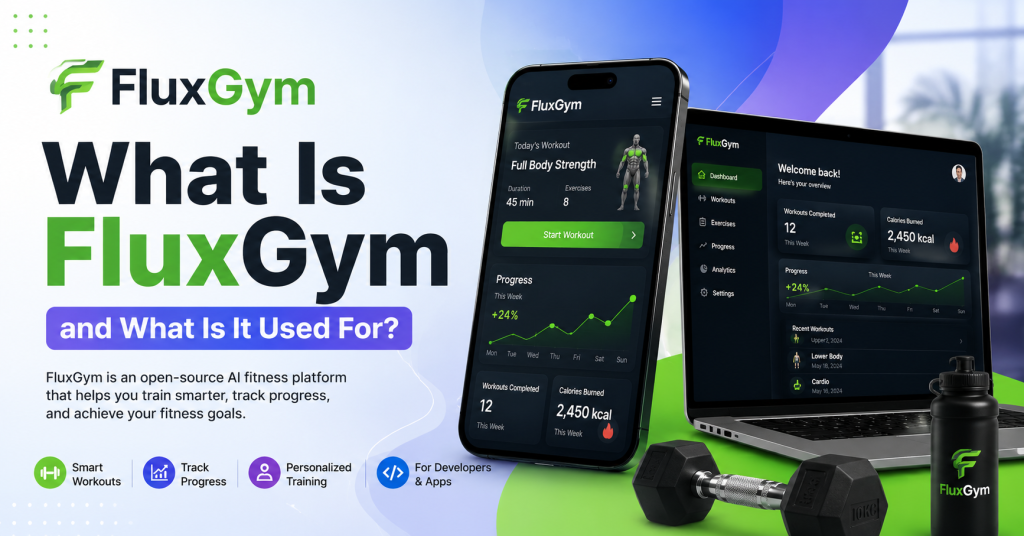
FluxGym is an open-source graphical interface designed for training FLUX LoRA models. Instead of relying entirely on terminal commands, it provides an intuitive workflow that makes AI model training much more approachable.
With FluxGym, you can:
- Train custom LoRA models
- Manage datasets
- Configure training parameters
- Preview generated images
- Monitor training progress
- Export trained models
Its clean interface makes it suitable for both beginners and experienced users.
Before You Install FluxGym
Before downloading FluxGym, make sure your computer meets the basic requirements.
Recommended specifications include:
- 64-bit Windows, macOS, or Linux
- Modern multi-core processor
- At least 16 GB RAM (32 GB recommended)
- NVIDIA GPU with CUDA support for the best performance
- Minimum 12 GB VRAM for larger FLUX models
- Python installed if required by your chosen setup
- Stable internet connection
While some workflows may run on lower-end hardware, training speed and model quality can be affected.
How to Download FluxGym
Always download FluxGym from its official GitHub repository to ensure you’re getting the latest and safest version.
The download page typically provides:
- Latest releases
- Installation instructions
- Source code
- Update notes
- Bug fixes
Avoid downloading FluxGym from unofficial websites, as they may provide outdated or modified files.
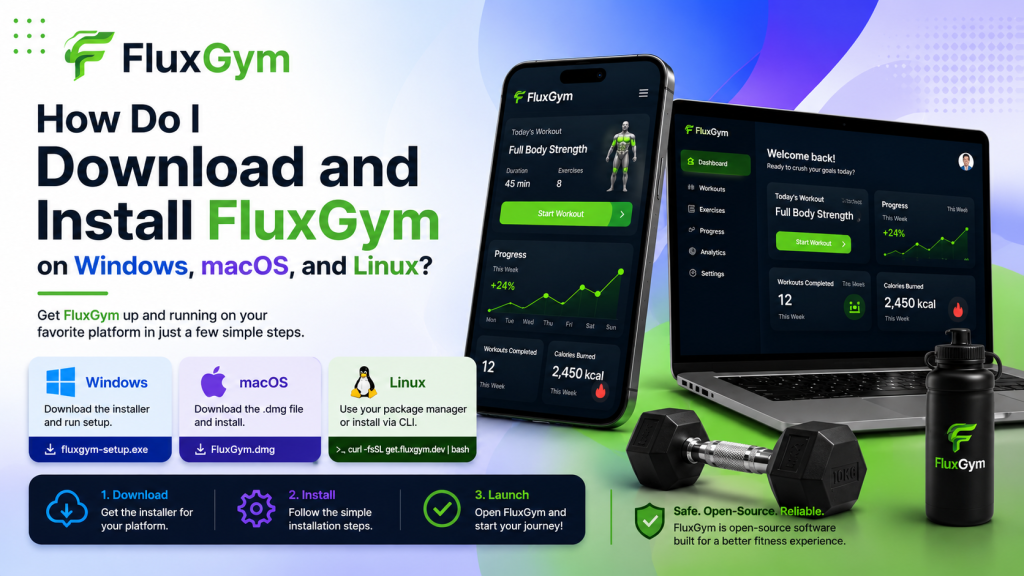
How to Install FluxGym on Windows
Windows is the most popular platform for FluxGym users.
Step 1: Download FluxGym
Visit the official GitHub repository and download the latest release.
Step 2: Install Required Dependencies
Depending on the release, you may need:
- Python
- Git
- CUDA drivers (for NVIDIA GPUs)
Install these components before launching FluxGym.
Step 3: Extract the Files
If FluxGym is downloaded as a ZIP archive:
- Right-click the file.
- Select Extract All.
- Choose your preferred installation folder.
Step 4: Launch FluxGym
Open the extracted folder.
Run the launcher or installation script provided with the project.
The first startup may take a few minutes while dependencies are downloaded.
Step 5: Verify Installation
If everything is installed correctly, you’ll see the FluxGym dashboard where you can:
- Create projects
- Import datasets
- Configure training
- Start LoRA training
How to Install FluxGym on macOS
Mac users can also install FluxGym, although Apple Silicon and Intel Macs may have slightly different requirements.
Download the Latest Release
Clone or download the project from GitHub.
Install Dependencies
Install:
- Python
- Git
- Required Python packages
Many users use Homebrew to install these tools.
Open Terminal
Navigate to the FluxGym folder and run the installation commands described in the project’s documentation.
Start FluxGym
Once installation finishes, launch the application.
The interface should load and be ready for project creation.
How to Install FluxGym on Linux
Linux offers a flexible environment for AI development.
Popular supported distributions include:
- Ubuntu
- Debian
- Fedora
- Arch Linux
Update Your System
Begin by updating your operating system packages.
Install Required Packages
Install:
- Python
- Git
- Virtual environment tools
- Required libraries
Download FluxGym
Clone the repository or download the latest release package.
Install Python Dependencies
Install all required packages listed in the project’s documentation.
Launch FluxGym
Run the startup script.
Once completed, the interface should open successfully.
How to Confirm FluxGym Is Working
After installation, perform a few simple checks.
You should be able to:
- Open the main dashboard
- Create a new training project
- Import images
- Select a FLUX model
- Configure training options
- Start a test training session
If these functions work normally, your installation is successful.
Common FluxGym Installation Problems
Sometimes installation doesn’t go as planned.
Here are some common issues and solutions.
Missing Python
If FluxGym reports Python errors:
- Install the recommended Python version.
- Restart your computer.
- Try launching FluxGym again.
CUDA Errors
If your GPU isn’t detected:
- Install the latest NVIDIA drivers.
- Verify CUDA compatibility.
- Restart your computer.
Missing Dependencies
If modules cannot be found:
- Reinstall the required packages.
- Ensure all dependencies listed in the documentation are installed.
Permission Errors
On macOS or Linux:
- Check folder permissions.
- Allow the application to execute if prompted.
- Avoid installing in protected system directories unless necessary.
Slow First Launch
The initial startup may take longer because FluxGym downloads dependencies or prepares the environment.
Future launches are usually much faster.
Tips for a Smooth Installation
To avoid common issues:
- Download FluxGym only from the official source.
- Keep your GPU drivers up to date.
- Install the latest supported version of Python.
- Ensure you have enough free disk space.
- Close unnecessary applications during installation.
- Read release notes before upgrading.
Following these best practices can save time and reduce troubleshooting.
Why Use FluxGym?
FluxGym is becoming a popular choice because it simplifies AI model training without sacrificing flexibility.
Benefits include:
- Beginner-friendly interface
- Cross-platform compatibility
- Active open-source development
- Simplified LoRA training workflow
- Easy project management
- Faster setup compared to many manual training methods
Whether you’re experimenting with AI art or building custom models for professional projects, FluxGym provides a practical starting point.
Conclusion
Downloading and installing FluxGym on Windows, macOS, or Linux is a straightforward process when you follow the official setup instructions and ensure your system meets the required specifications. Once installed, FluxGym provides a user-friendly environment for training FLUX LoRA models, managing datasets, and customizing AI image generation workflows without the complexity of manual configuration. Whether you’re just getting started with AI model training or looking for a more efficient workflow, FluxGym offers the tools you need to build and experiment with confidence. Keep the application and its dependencies updated to enjoy the latest features, performance improvements, and bug fixes for the best possible experience.